AuthSys API Key and AW1000 Flashing Guide
1. Log in to AuthSys
- Open your browser and go to: https://authsys.solomonricky.eu.org/
- Log in with your AuthSys credentials.
2. Create a new API key
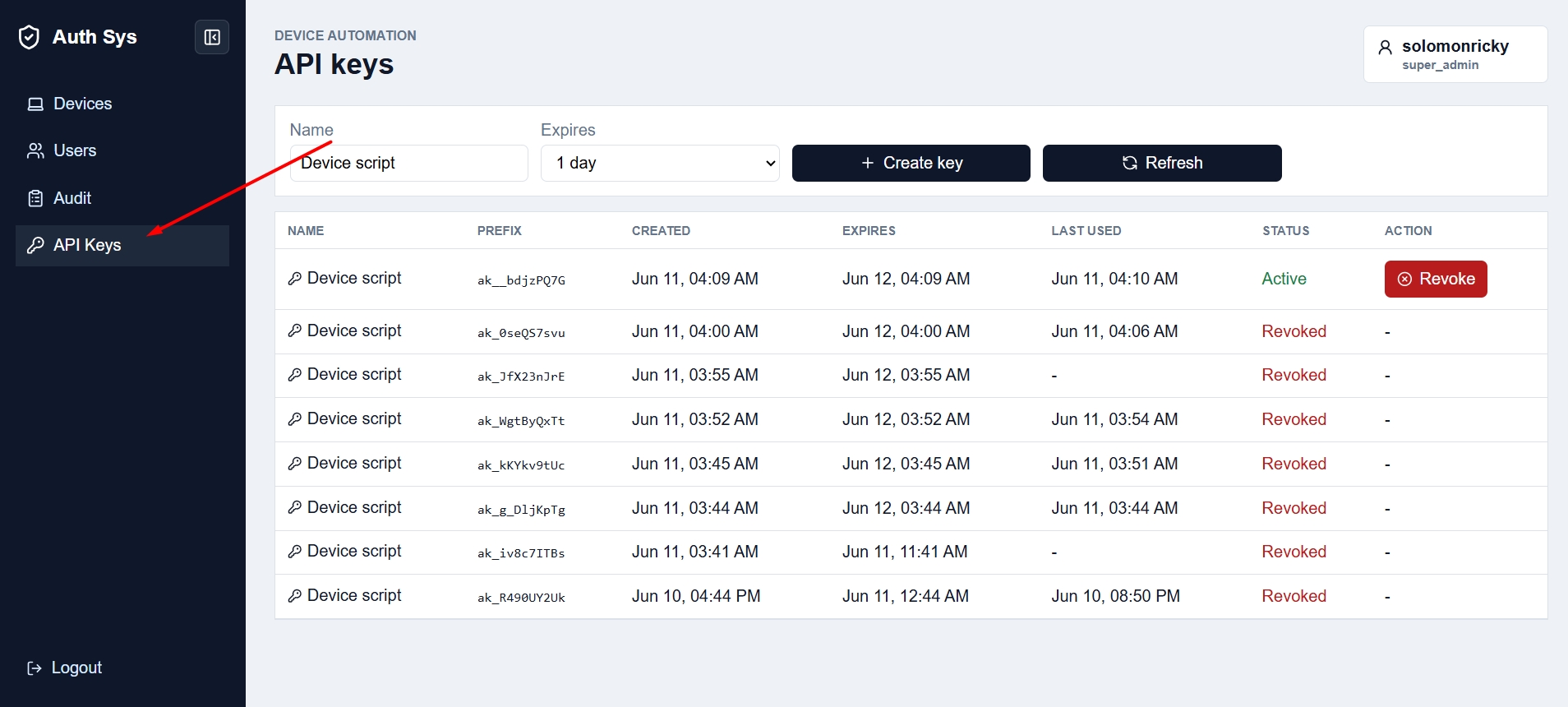
After logging in, go to the API Keys section.
Enter a descriptive Name so you can recognize the key later.
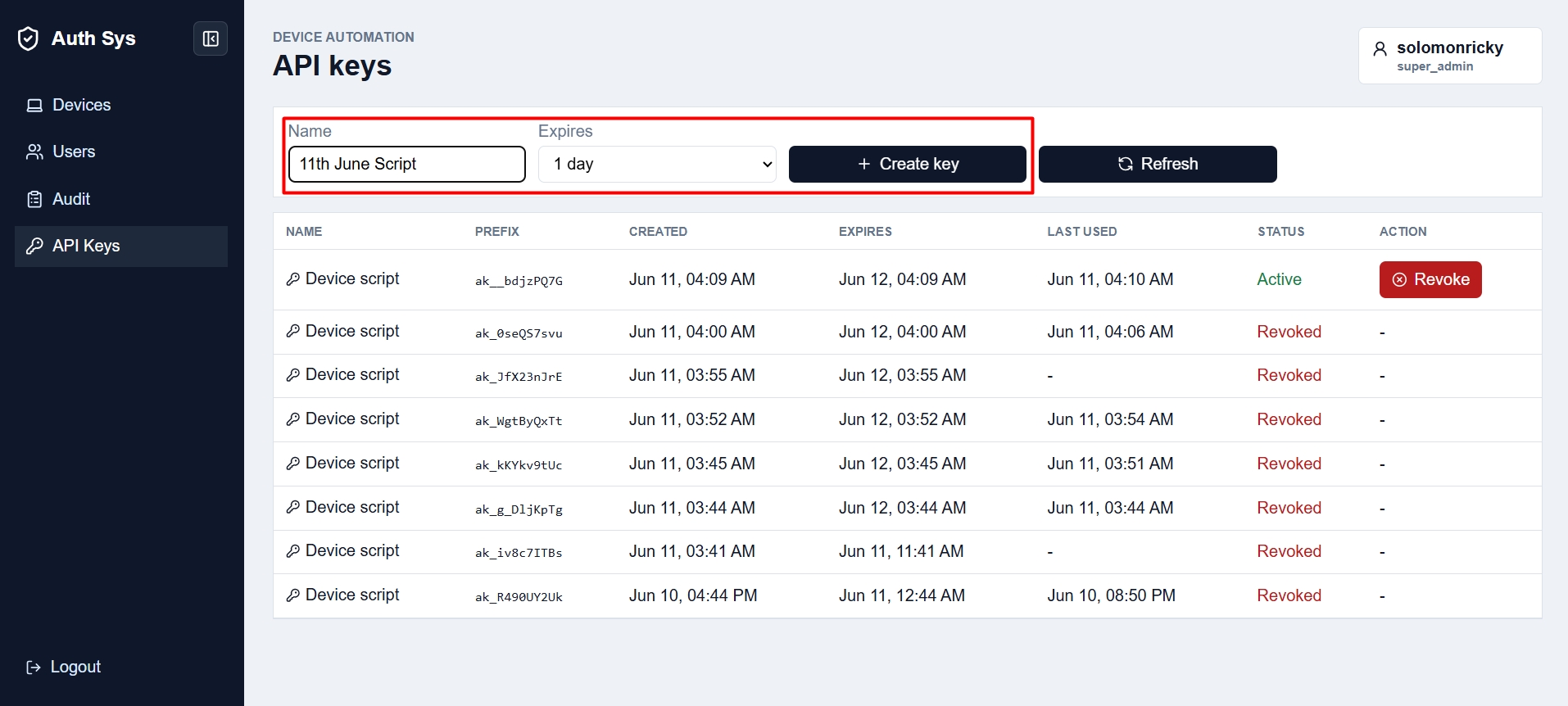
Choose an expiration time:
8h12h1 day3 days7 days14 days30 days
Create the API key.
Note: The API key can only be shown during creation. It cannot be reviewed again later.
3. Prepare the flashing command
Replace the API key value with the generated key in the command below.
| |
- Replace
xxxxxxxwith the exact API key you created. - Make sure the API key is copied exactly, including all characters.
4. Run the command on the AW1000
- Log in to the Arcadyan AW1000 SSH terminal.
- Paste and run the prepared command.
5. Power cycle and reset the device
- After flashing and upgrading finishes, turn off the power switch.
- Press and hold the reset button.
- Turn the power back on while still holding the reset button.
- Keep holding until two LEDs light up.
6. Configure your PC IP settings
Set your computer’s network interface to:
- IP address:
192.168.1.2 - Netmask:
255.255.255.0 - Default gateway:
192.168.1.1
7. Run the Selenium script on Windows
A downloadable copy of the script is available here:
Place the
AW1000_Windows.pyandfirmware.ubiin a same folder.In that folder, open a Command Prompt window directly:
- Hold
Shift, right-click inside the folder, and choose Open PowerShell window here or Open command window here. - Or click the folder path bar, type
cmd, and pressEnter.
- Hold
Run:
1python AW1000_Windows.py
Note: Make sure
firmware.ubiis in the same directory asAW1000_Windows.py.
8. Let Selenium finish
- Selenium will handle the rest of the process automatically.
- You can relax while the script runs.